Importing a multilingual Excel file into a glossary
Sometimes clients send you project-related multilingual Excel files that you want to convert to a CafeTran glossary. CafeTran can import the first two columns of an Excel file into a glossary (or TMX Termbase).
Here is an example of a multilingual glossary in Excel:
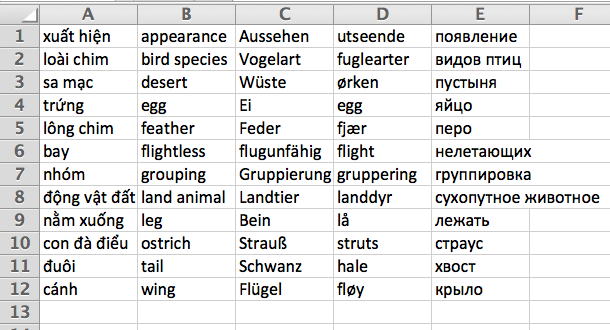
- If necessary, in Excel hide or delete columns so that the source language of your translation project is in the first column and the target language is in the second column:
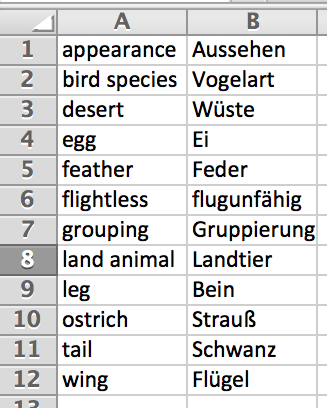
- In CafeTran, make sure that a glossary tab is activated:

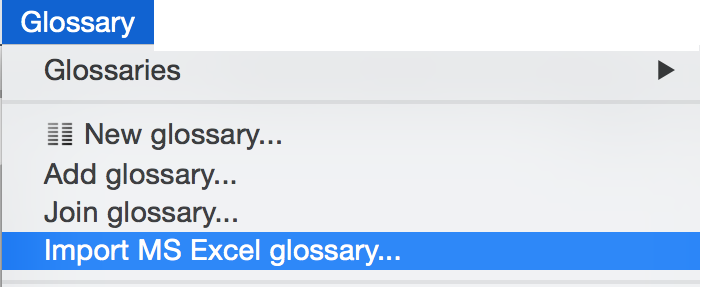
- From the Glossary menu choose Import MS Excel glossary:
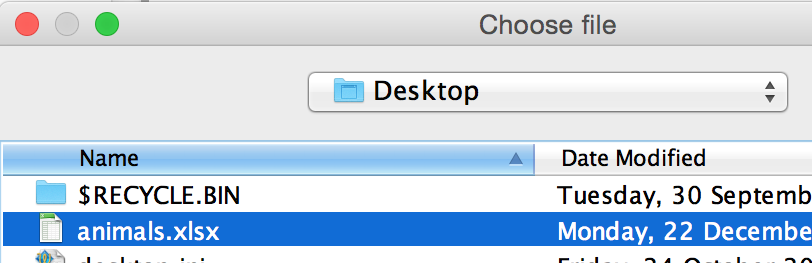
- Navigate to the Excel glossary and open it:
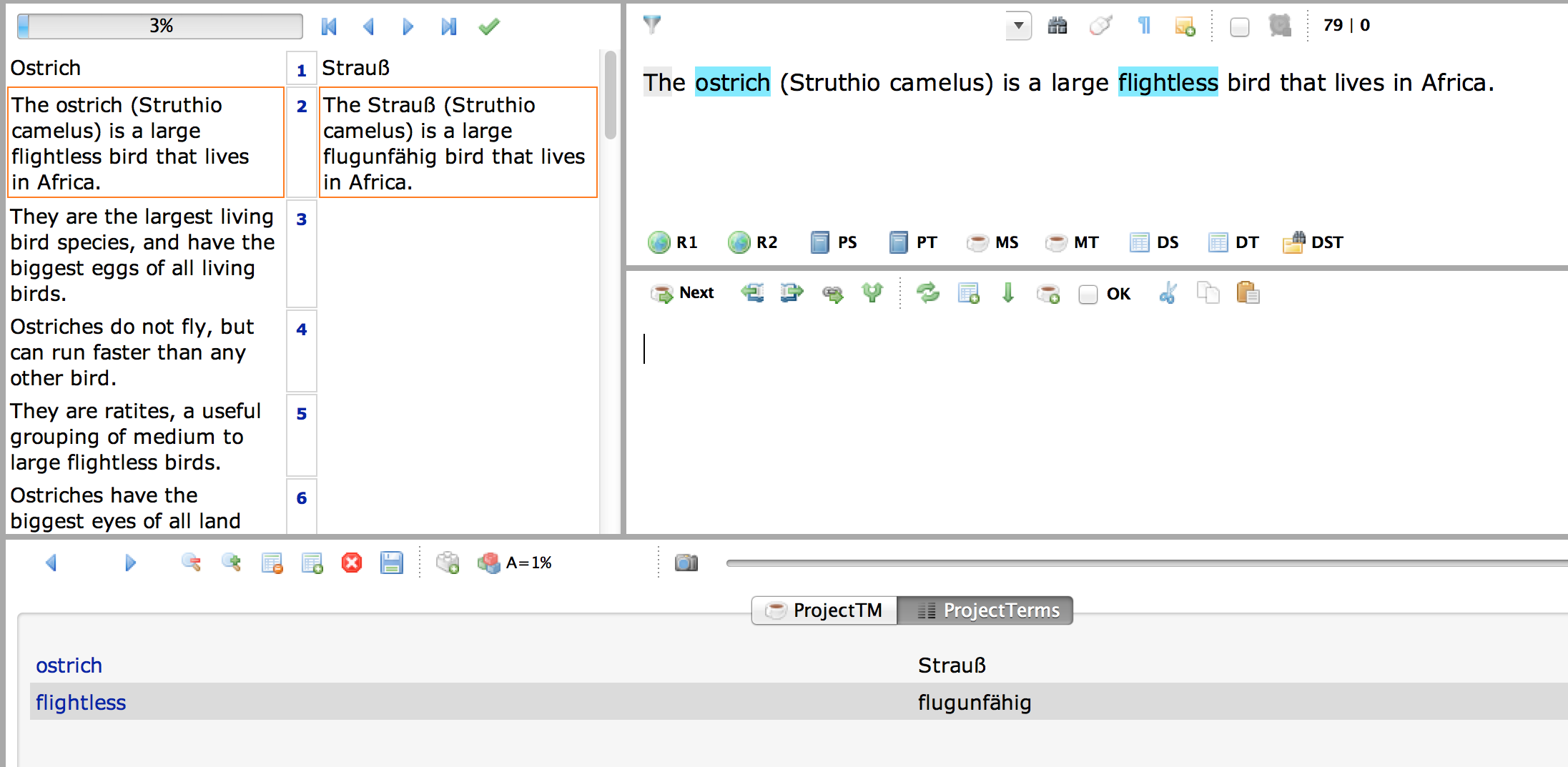
- The content of the Excel glossary will be imported into the active glossary:
PLEASE NOTE: Only the first two columns of your Excel glossary will be imported. If you want to add a Definition or Source field, you can do this later on, in the CafeTran glossary.
