New: First look at CafeTran 2015 Update 11 (2015-11-09)
Click here to download this First Look as a PDF file.
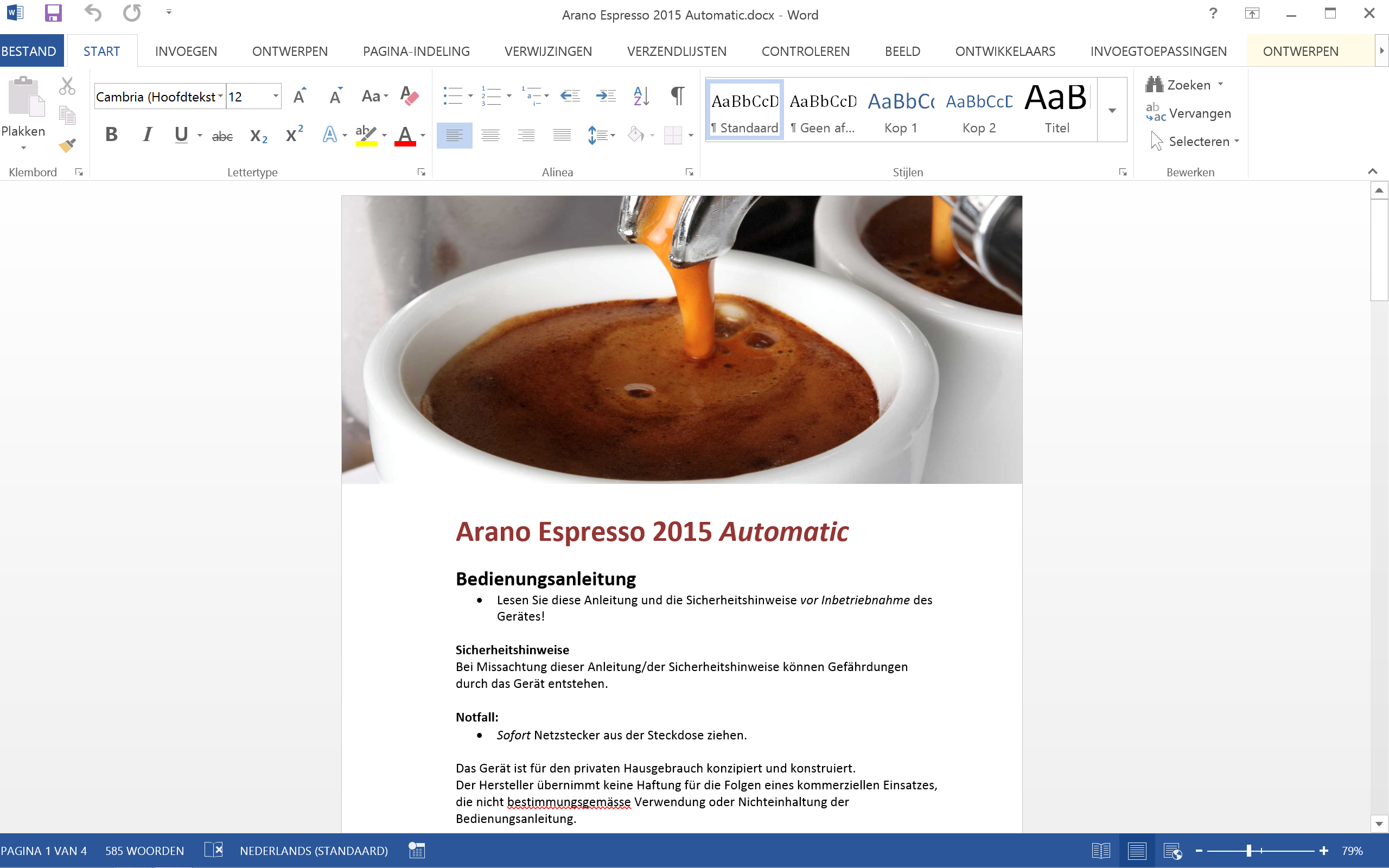
In this introduction, we will translate a sample Word document that you can download here (there is also a TMX file included):
- Start CafeTran.
- Make sure that the Project Memory and Project Terms checkboxes are both ticked.
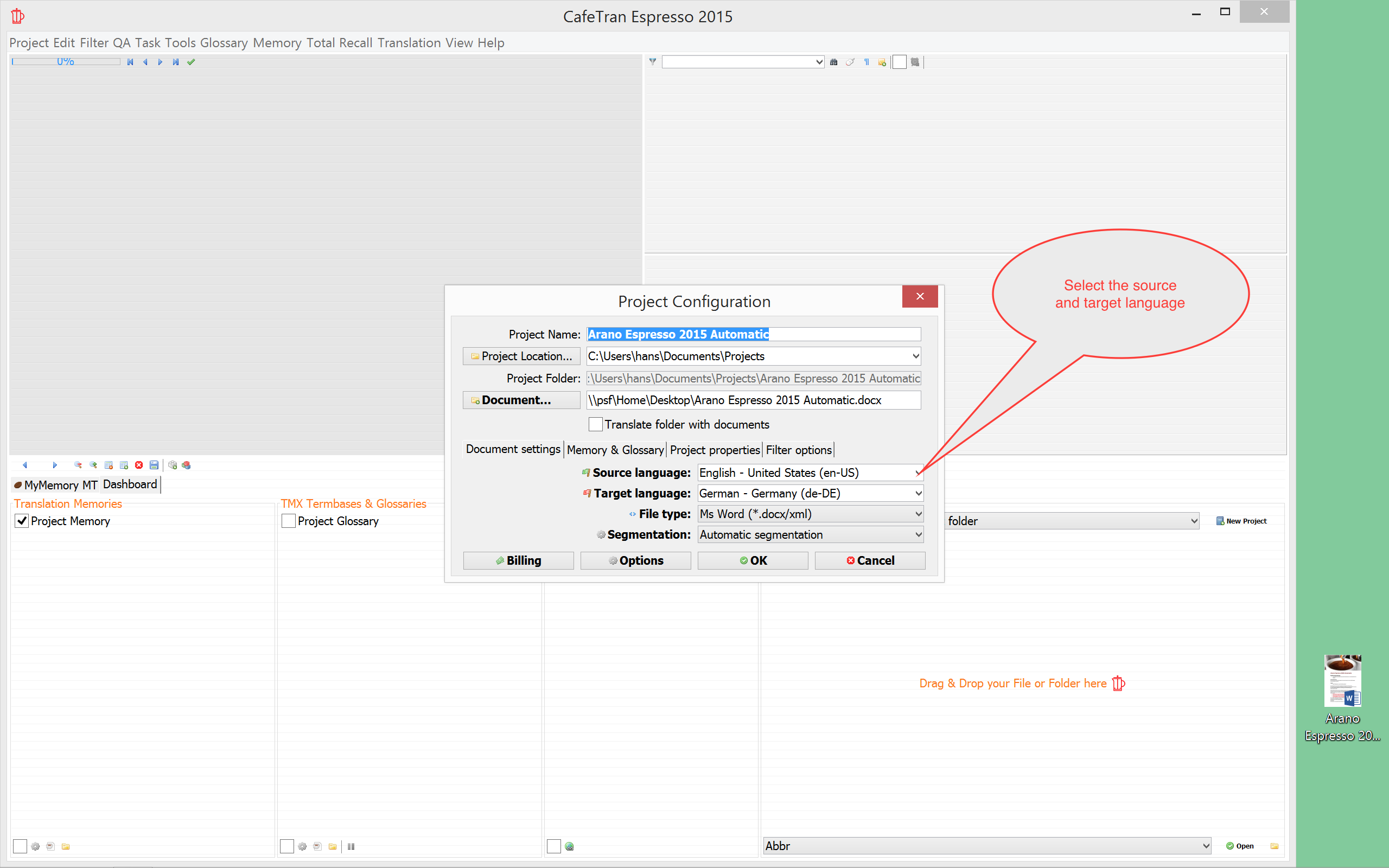
- Drag the Arano sample document from your Desktop onto the Project group in the Dashboard pane:

- If necessary, adjust the Source language and Target language settings.
- Click the OK button to create the translation project.
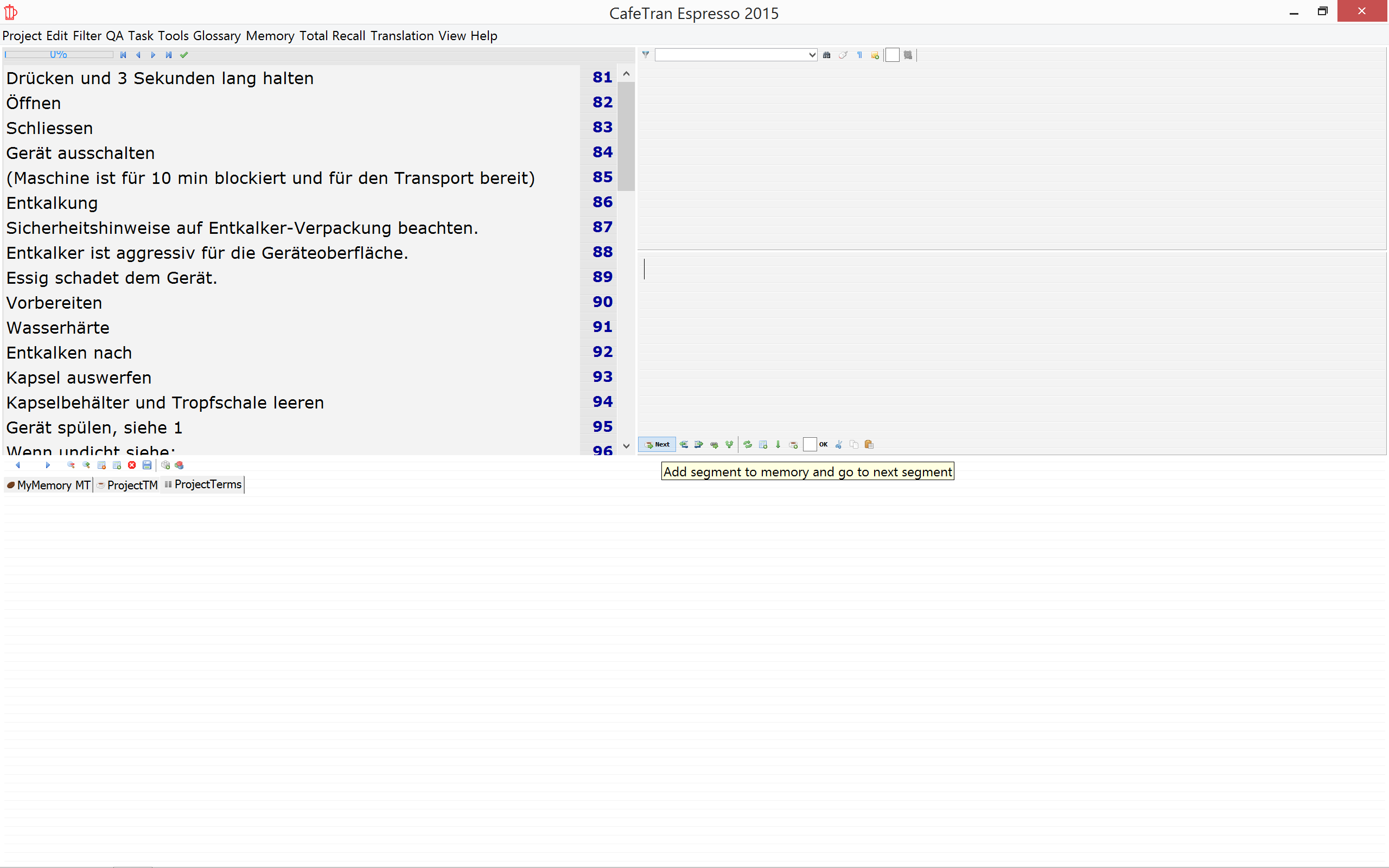
The project will be loaded into the top-left pane called ‘the Grid’.
- To start translating, click on the white coffee cup with the green arrow ➜:
The Grid will change to a table view, with the source document in the left column. The content of the first table cell in the Grid will be duplicated in the top-right pane, the Source segment pane.
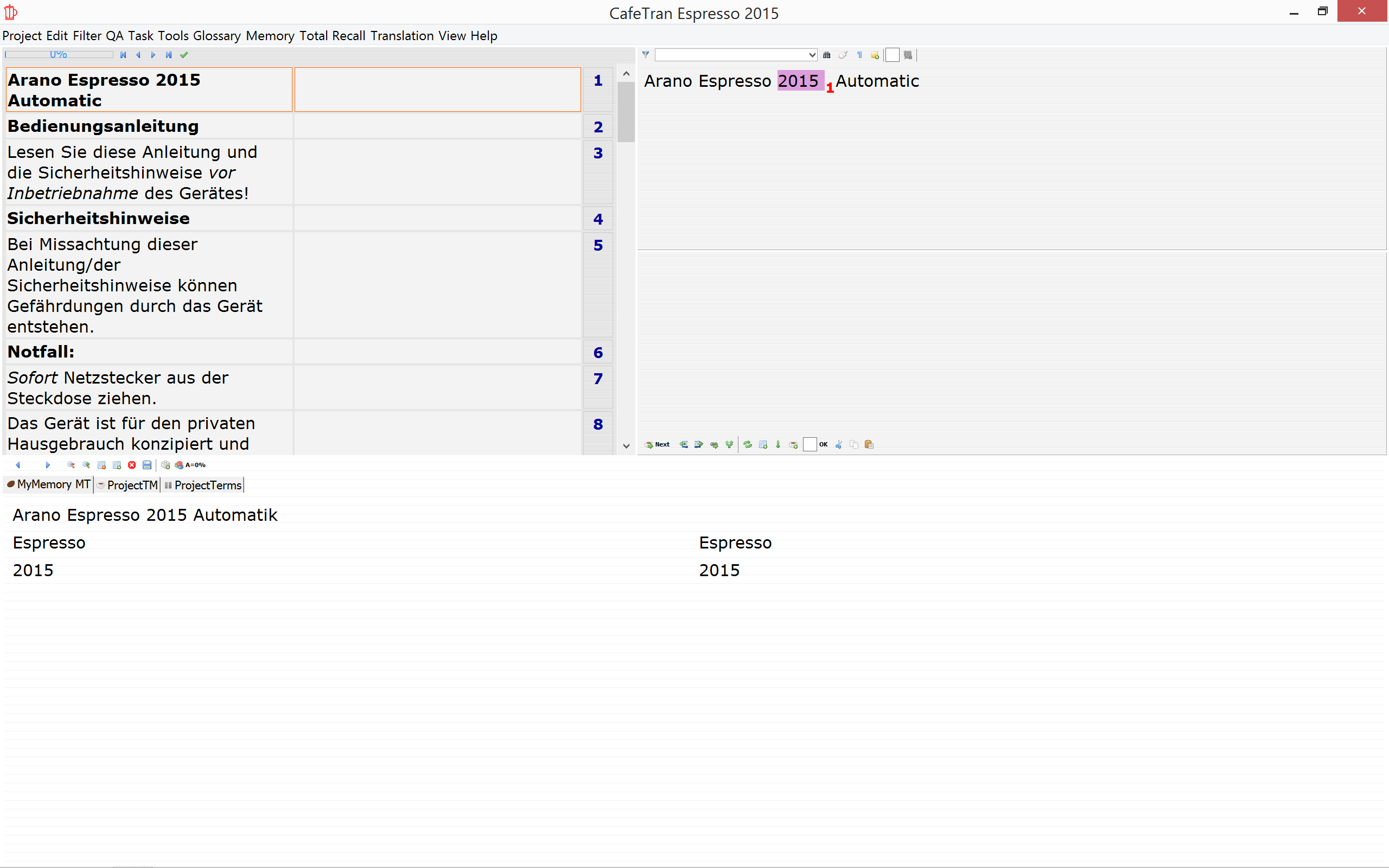
- Because your translation of the first segment (the title of the document) is identical to the content of the source segment, you can simply duplicate the content of the Source segment pane to the Target document pane by clicking the green arrow ↓.
- Proceed to the third segment.
- Note that vor Inbetriebnahme in the Grid is in italics.
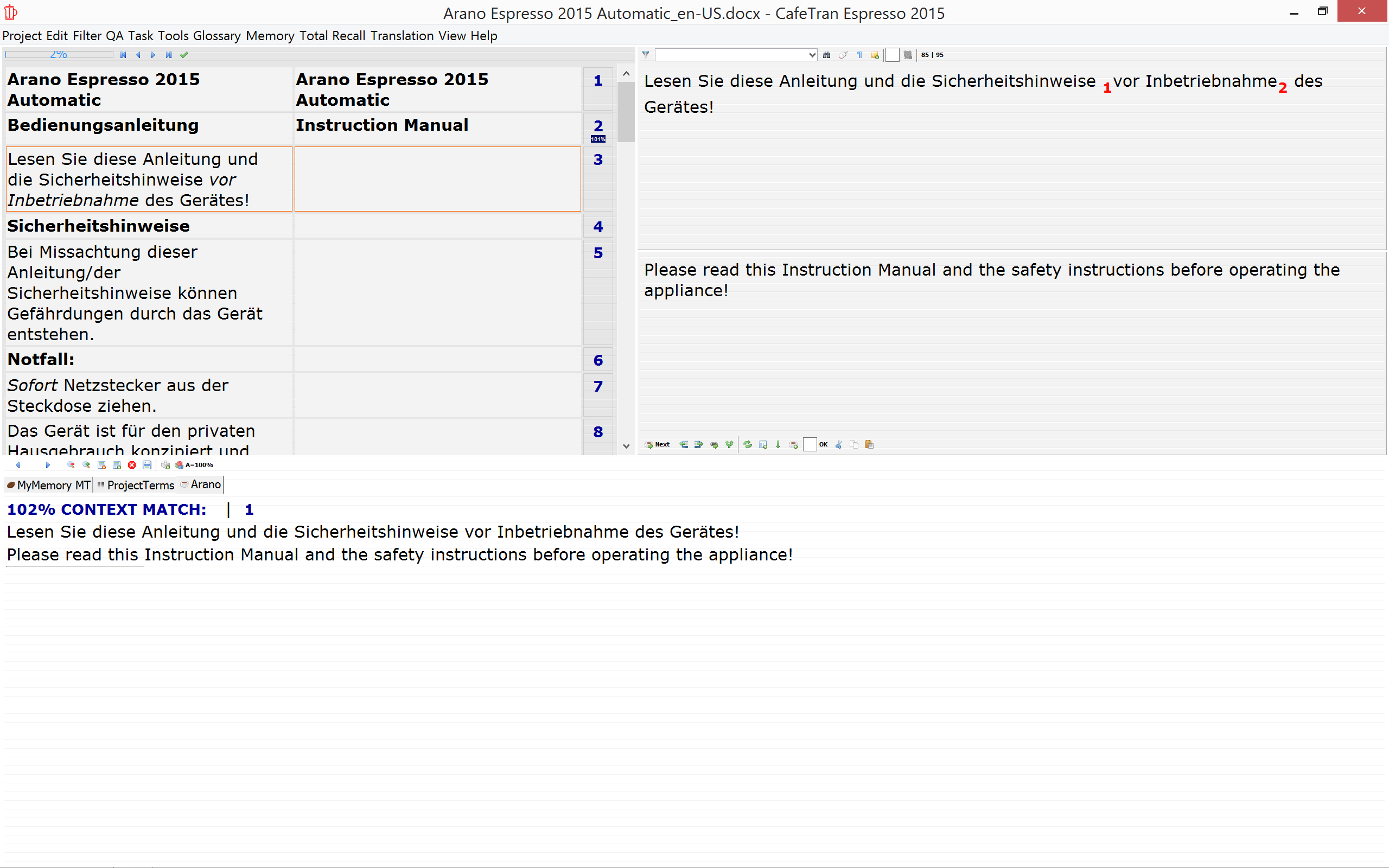
- In the Target segment pane navigate to ‘before’ and type a ‘1’ before the word. Then hit ESC. A red 1 will appear, indicating a font change.
- Navigate to ‘operating’ and type a ‘2’ behind the word. Hit ESC again to indicate another font change (the return to normal text).
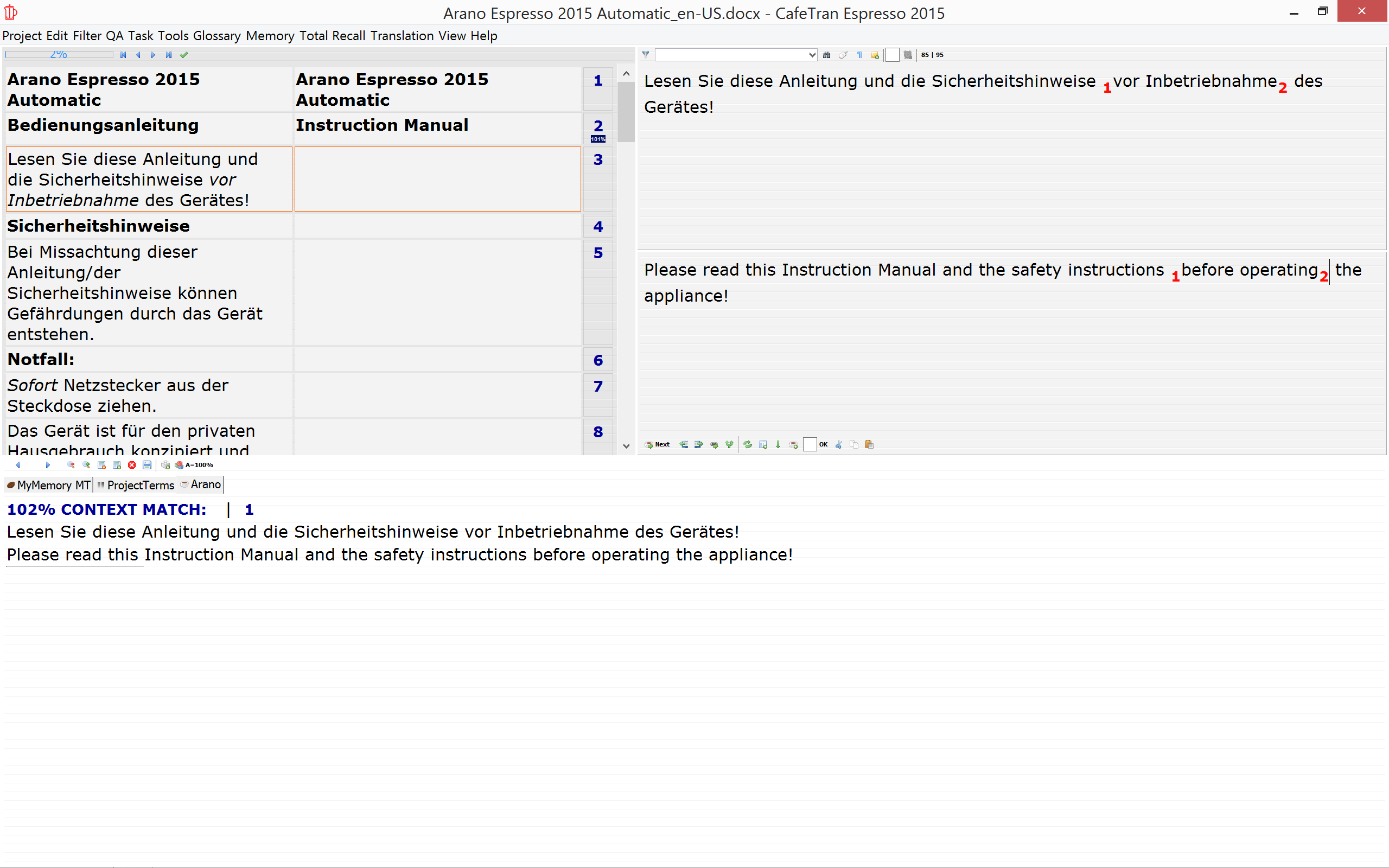
- Translate all other segments.
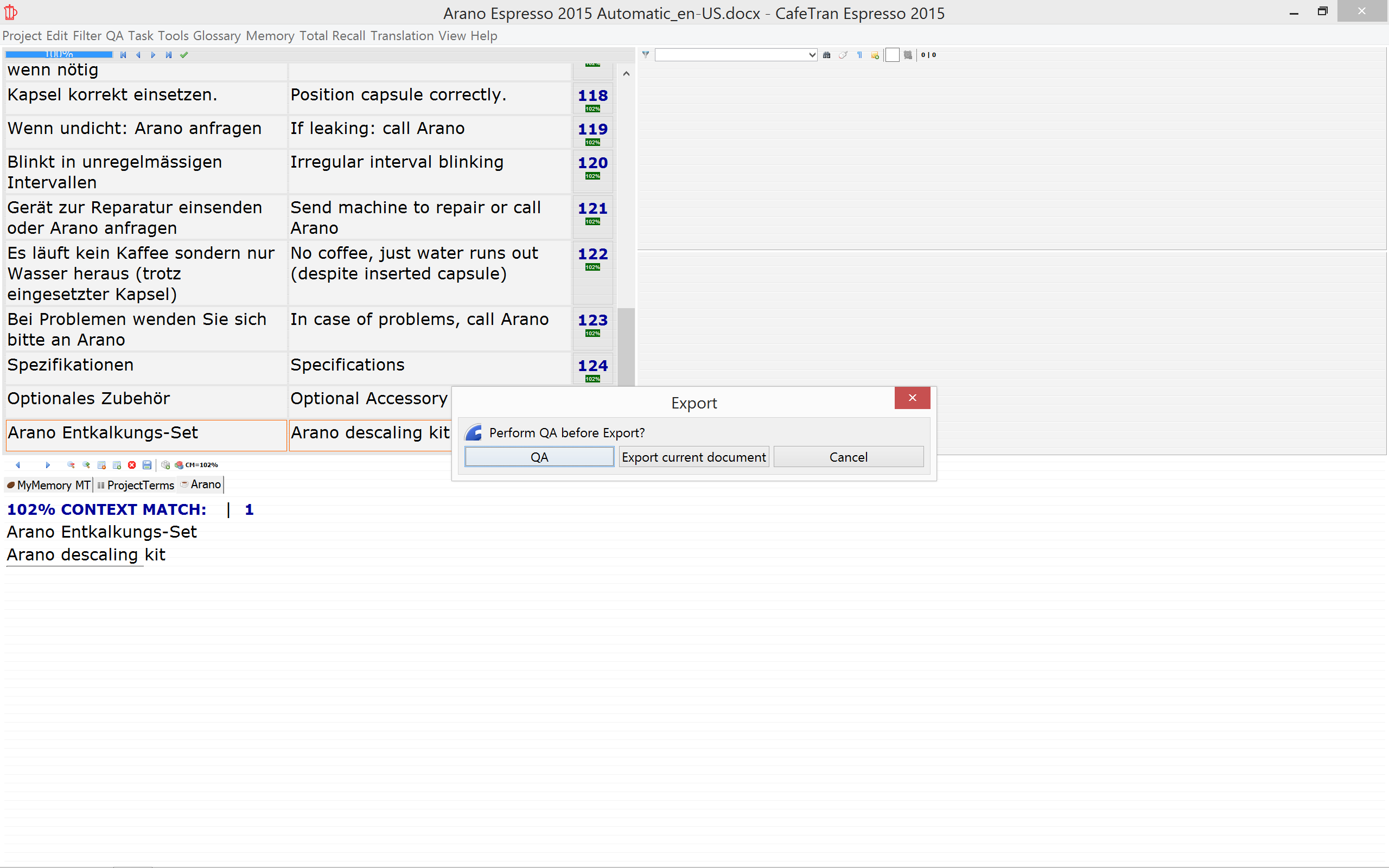
Once you have translated the last segment, click the white coffee cup with the green arrow ➜ again, which will cause the Export dialogue box to be displayed.
- Click on Export current document.
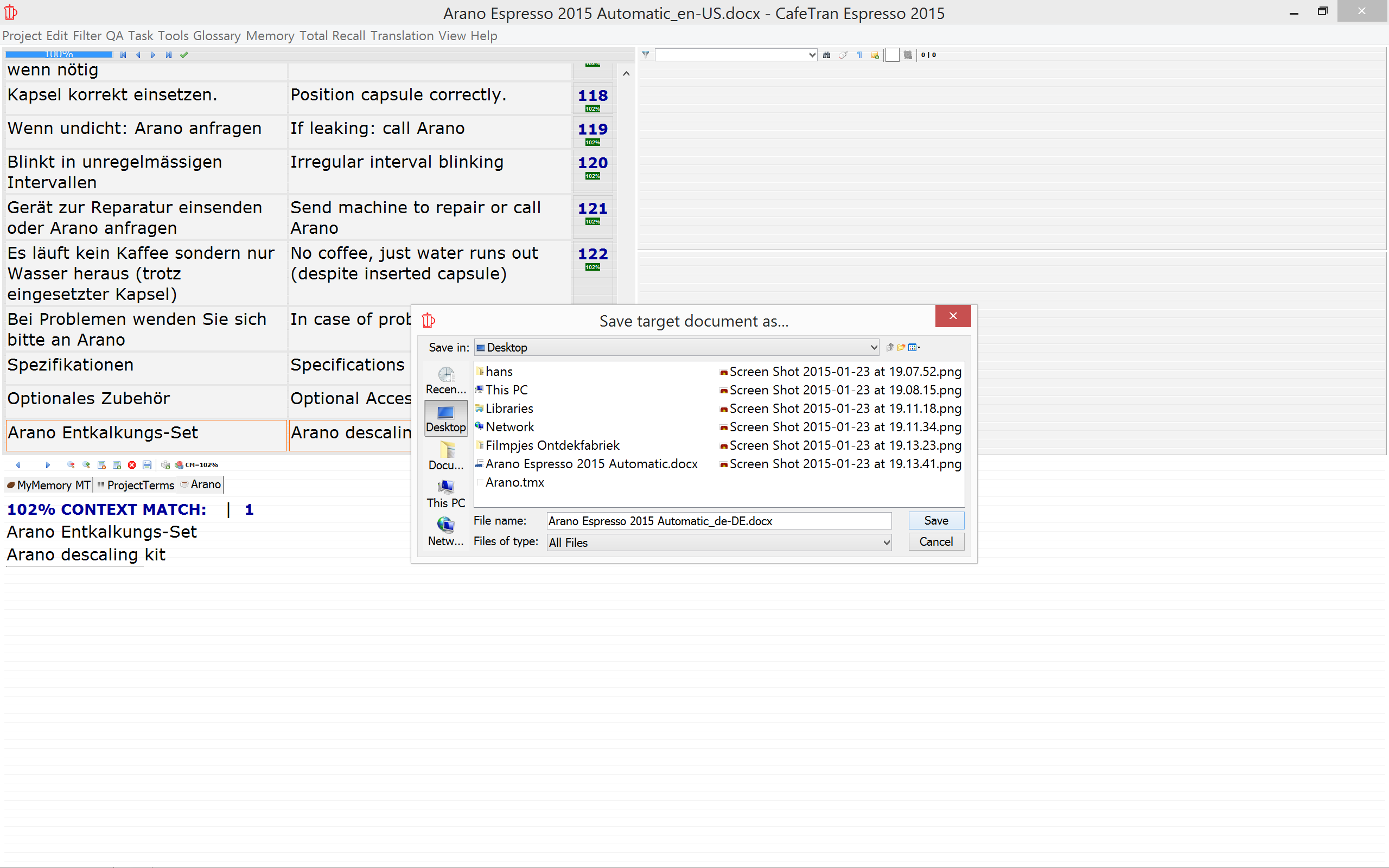
- In the Save target document as… dialogue box, click on the Desktop icon in the Favourites bar.
- Click the Save button.
Congratulations, you have just translated your first CafeTran project!
Want to learn more about CafeTran?
- Watch a screencast of the steps above
- Continue with your second project to learn how to add words to your glossary.
- Read a Description of The Dashboard
- Already using a CAT tool? Please read the quick start migration guide too: First look at CafeTran - For CAT Tool Switchers
- Running CafeTran for the first time after installation
- Some more screenshots of CafeTran 2015
- Setting Notepad++ as a Glossary Editor
- Learn how to use CafeTran's advanced features for Editing & Selecting text
Importing a folder with several documents
You can see a screen recording here.
