Translating Excel files with hidden content
- Select the column or cells that you want to hide.
- From the context menu select ‘Hide’.

- To hide a whole worksheet activate it and open the context menu.
- From the context menu select ‘Hide’:

In Excel the source while now will look like this (only the translatable content is displayed):

- Import the Excel file in CafeTran.
Only the content that was not hidden will appear in the grid:

- Export your translation.
- Open the translation in Excel:
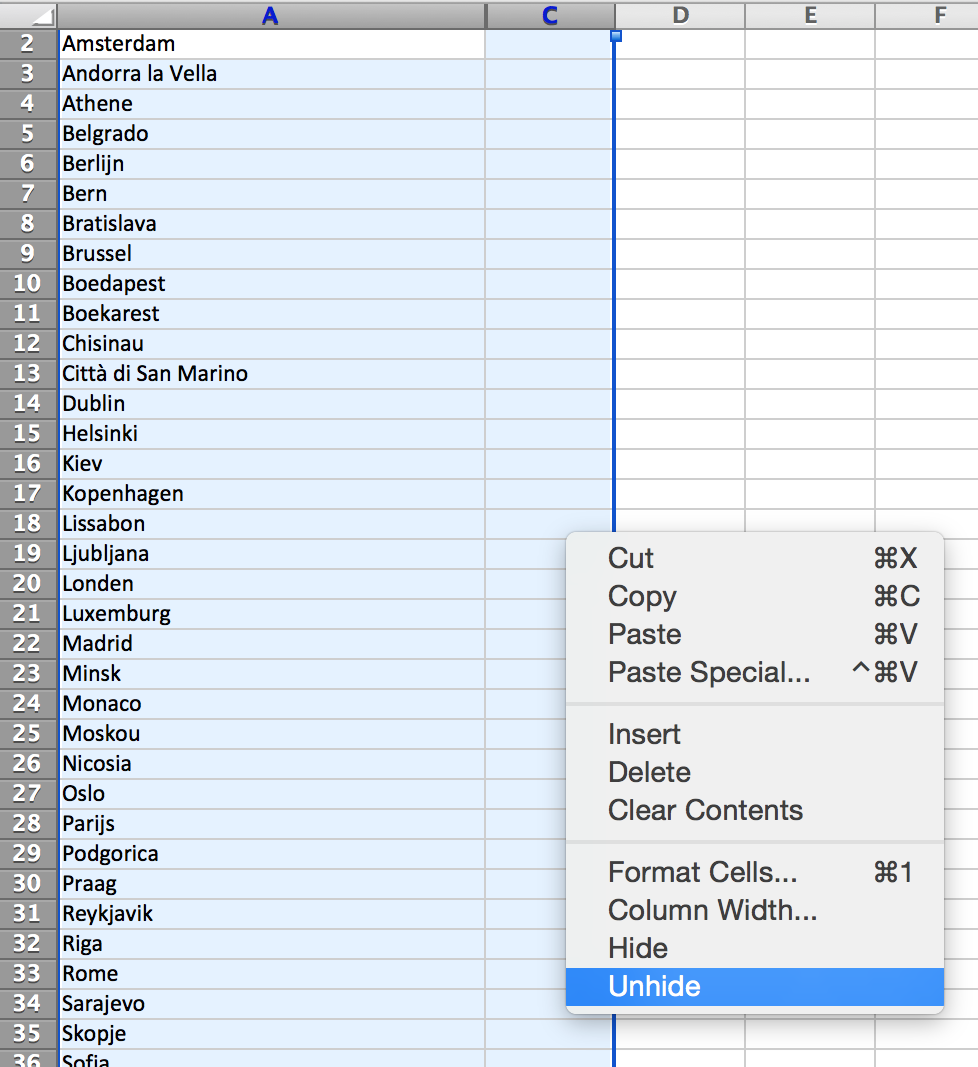
- To unhide a hidden column select the two adjacent columns.
- Open the context menu and select ‘Unhide’.
The hidden column will be visible again:

To unhide one moe hidden worksheets, follow the steps described here.
See also: Translating Excel files with hidden cells or ranges
