Adding glossary terms
Click here to download a previous version of this tutorial as a PDF.
- Start CafeTran.
- Make sure that the Project Memory and Project Glossary checkboxes both are ticked.
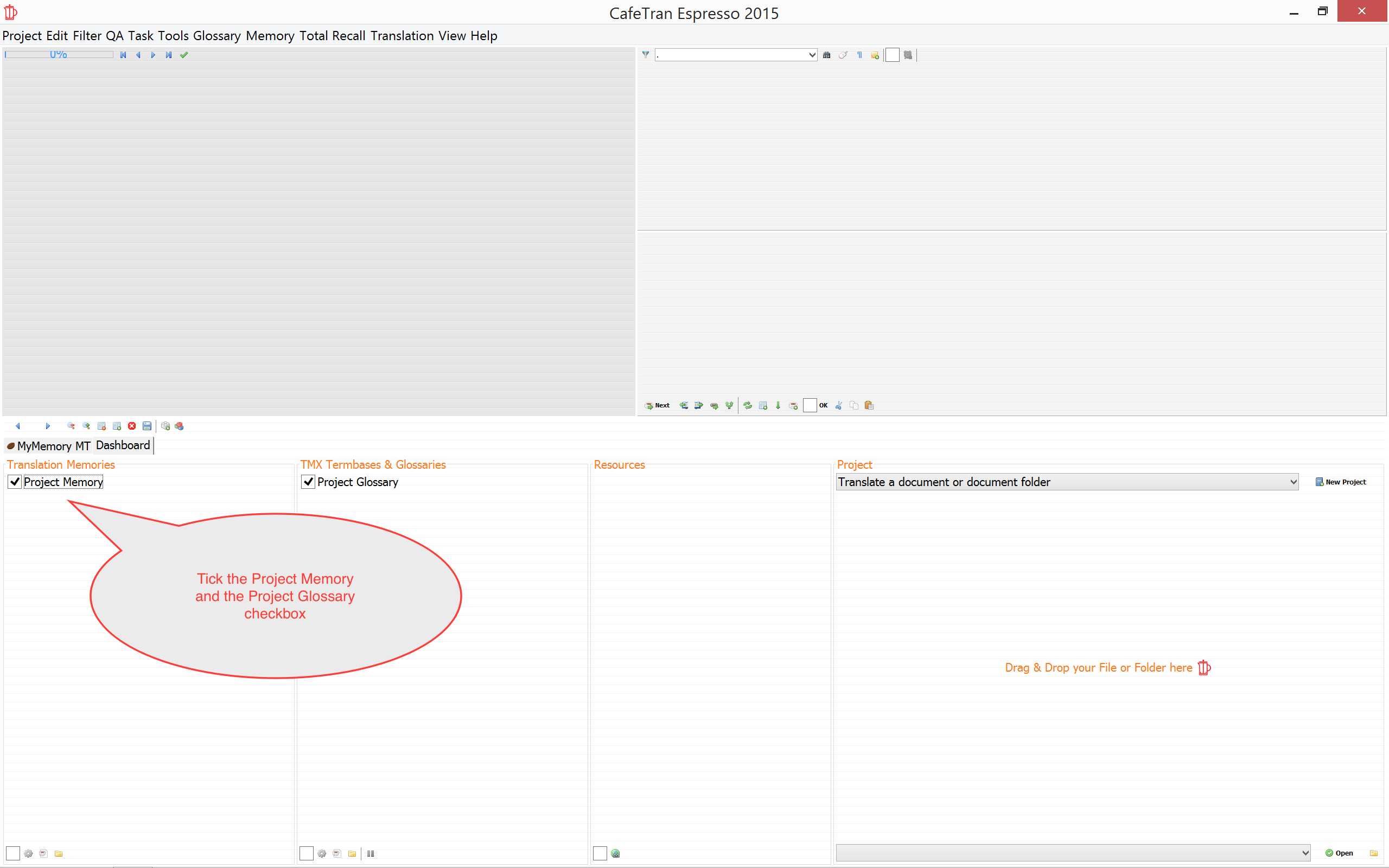
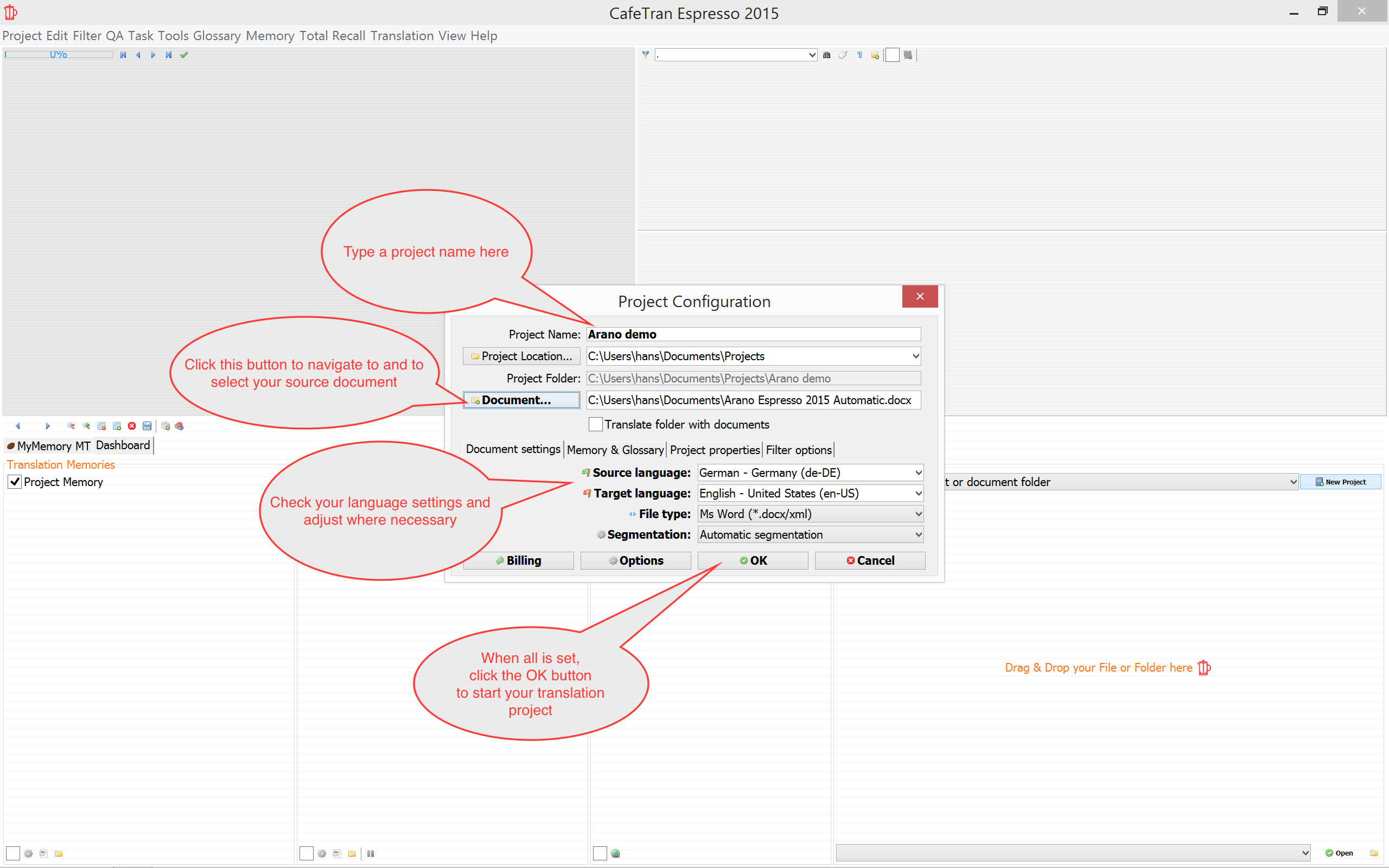
- Click the New Project button to create a new project.
- In the Project Configuration dialogue box insert a project name.
- Adjust all other settings to your needs.
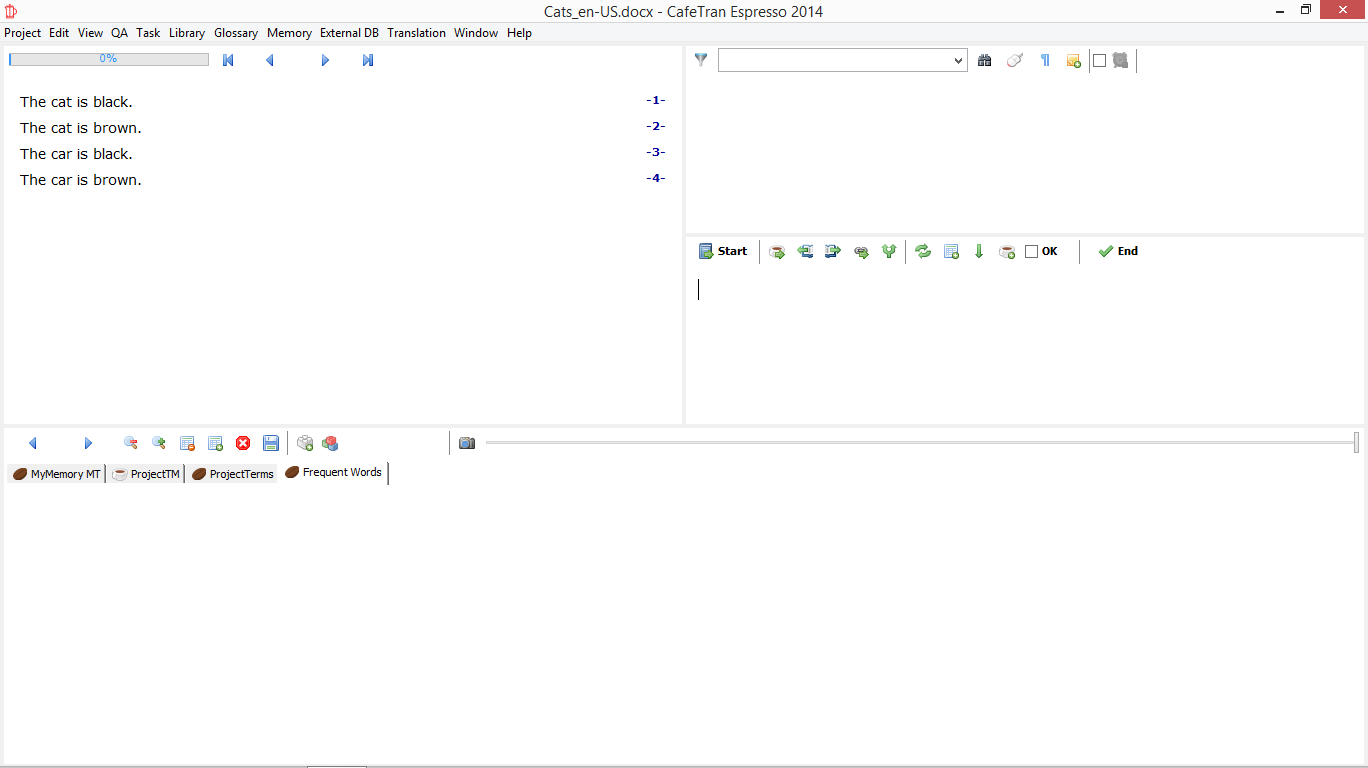
Your first document is loaded.
- Click on the Next icon.
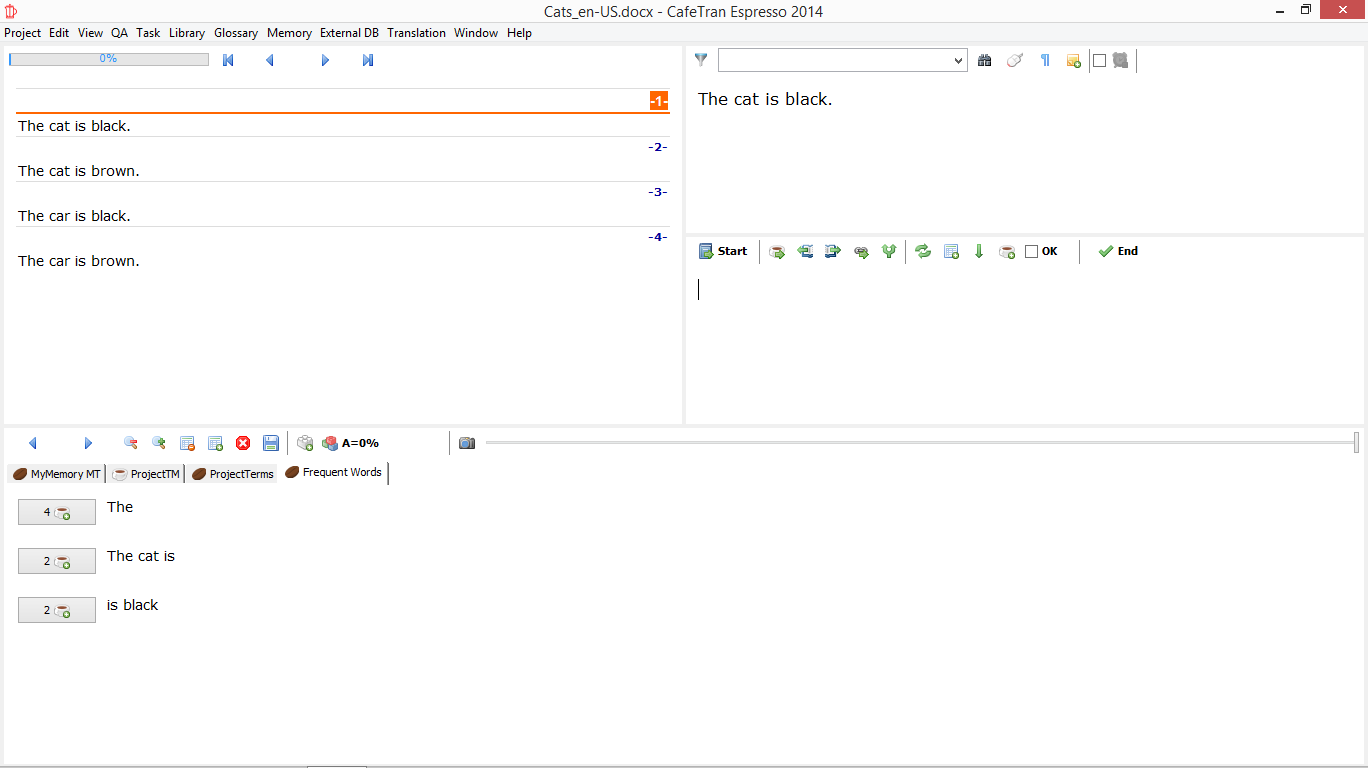
- Click on the MyMemory MT tab to check the machine translation.
- If you like the result, drag over the machine translation to insert it into the target text pane.
Now, let us add some terms to the project glossary:
- Click on the ProjectTerms tab to display it.
- Select a word in the source text pane.

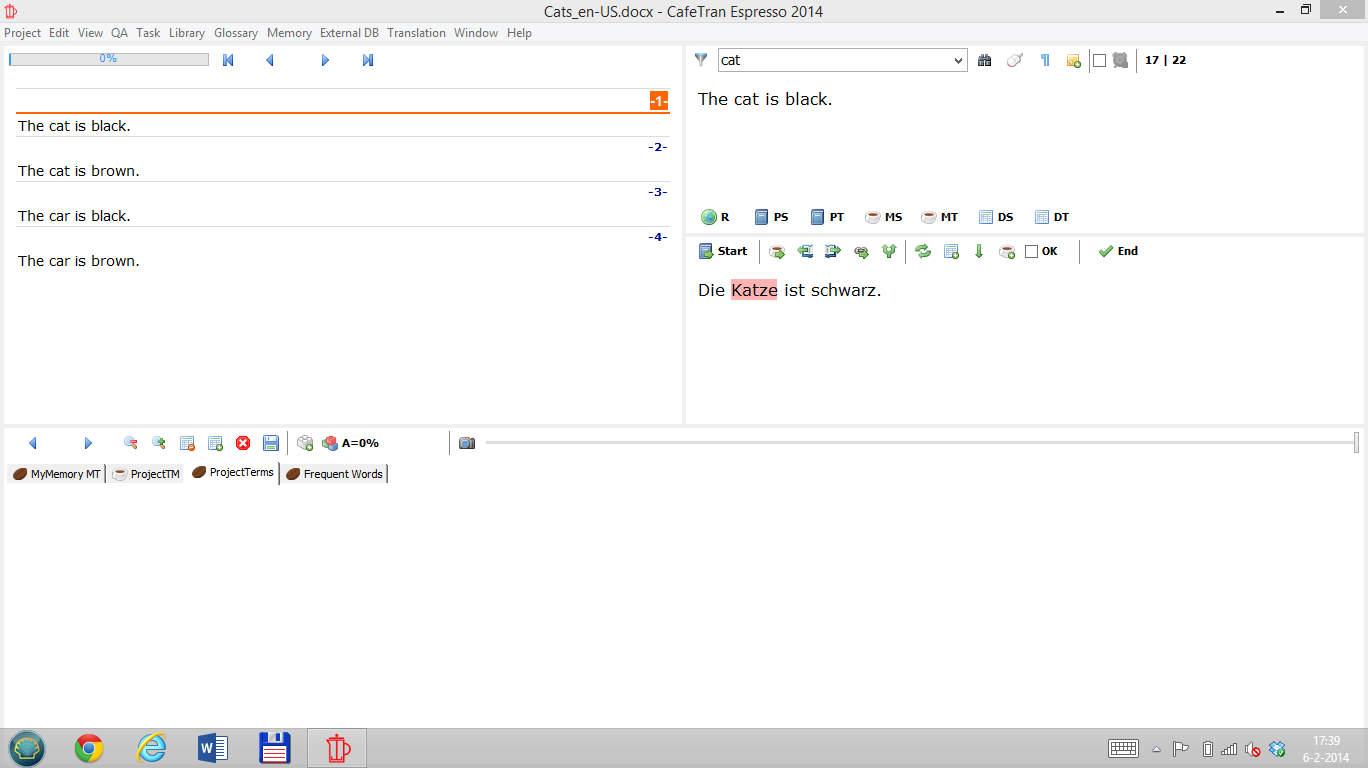
- Select the corresponding target term in the target text pane.
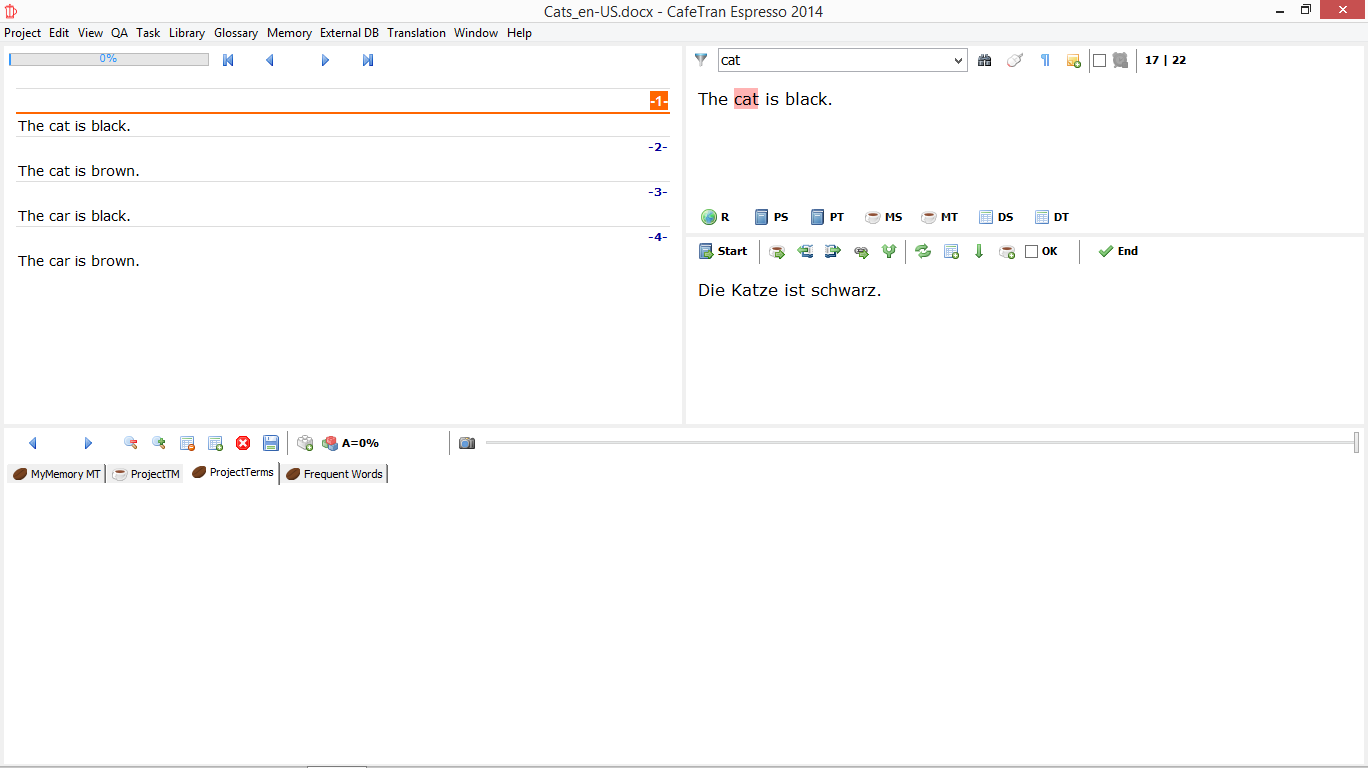
- Click on the Add term to database or glossary icon.
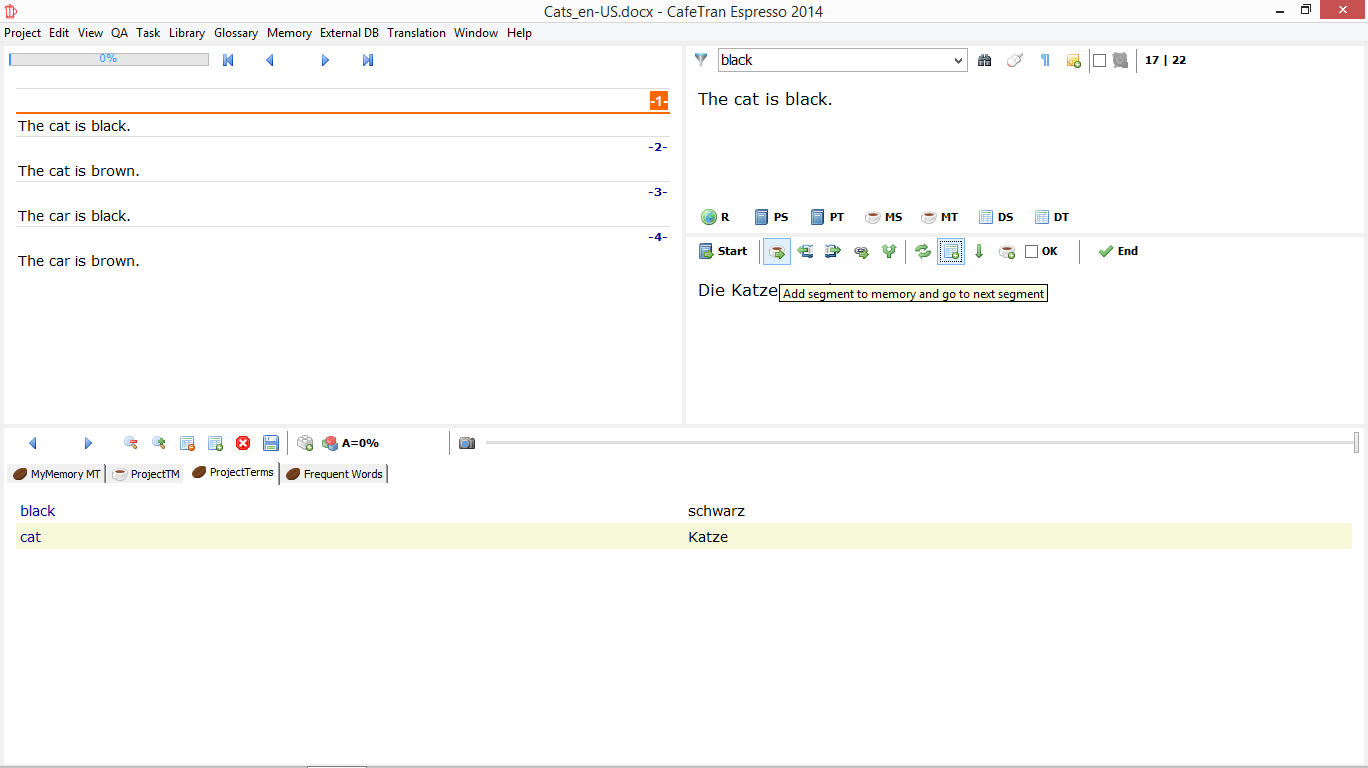
- Click on the Add segment to memory and go to next segment icon.

- Drag over the target term in the ProjectTerms tab to insert it into the target text pane.
- Select a word in the source text pane.
- Select the corresponding target term in the target text pane.

Let us proceed to the next segment to translate, whilst adding the finished translation to the translation memory:
- Click on the Add term to database or glossary icon.

- Just for kicks, add another term pair to the glossary:

- Check the result:
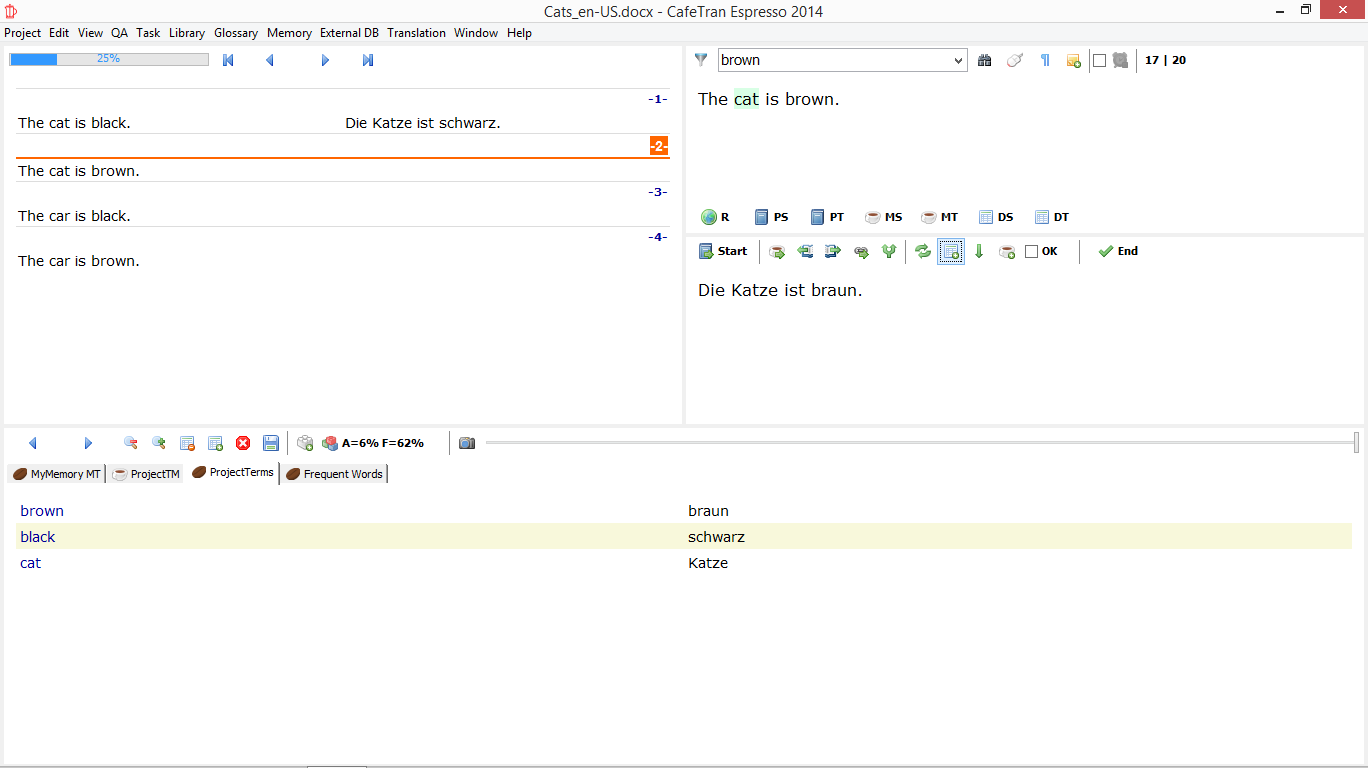
- Proceed to the next segment:
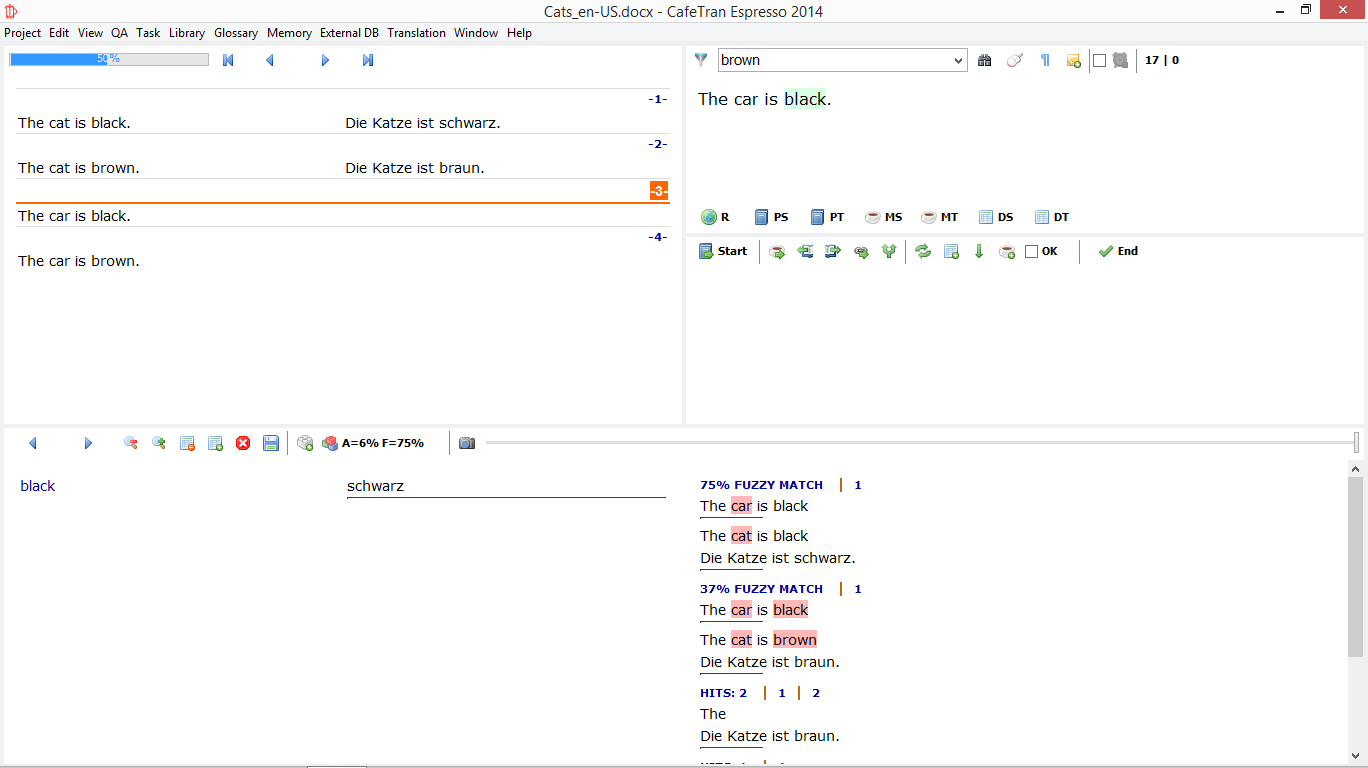
- Translate it, whilst using the results from your project glossary and the MyMemory tab by dragging over them.

- Export your project.
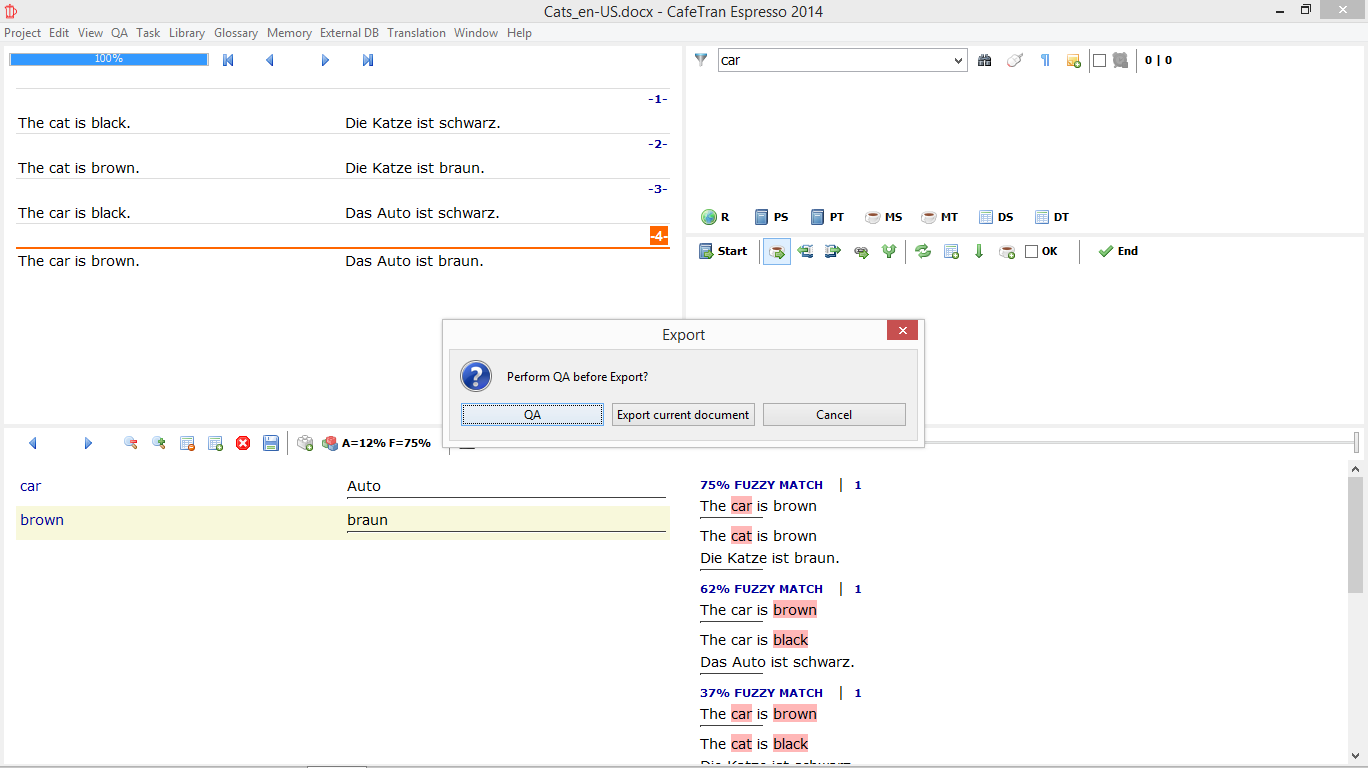
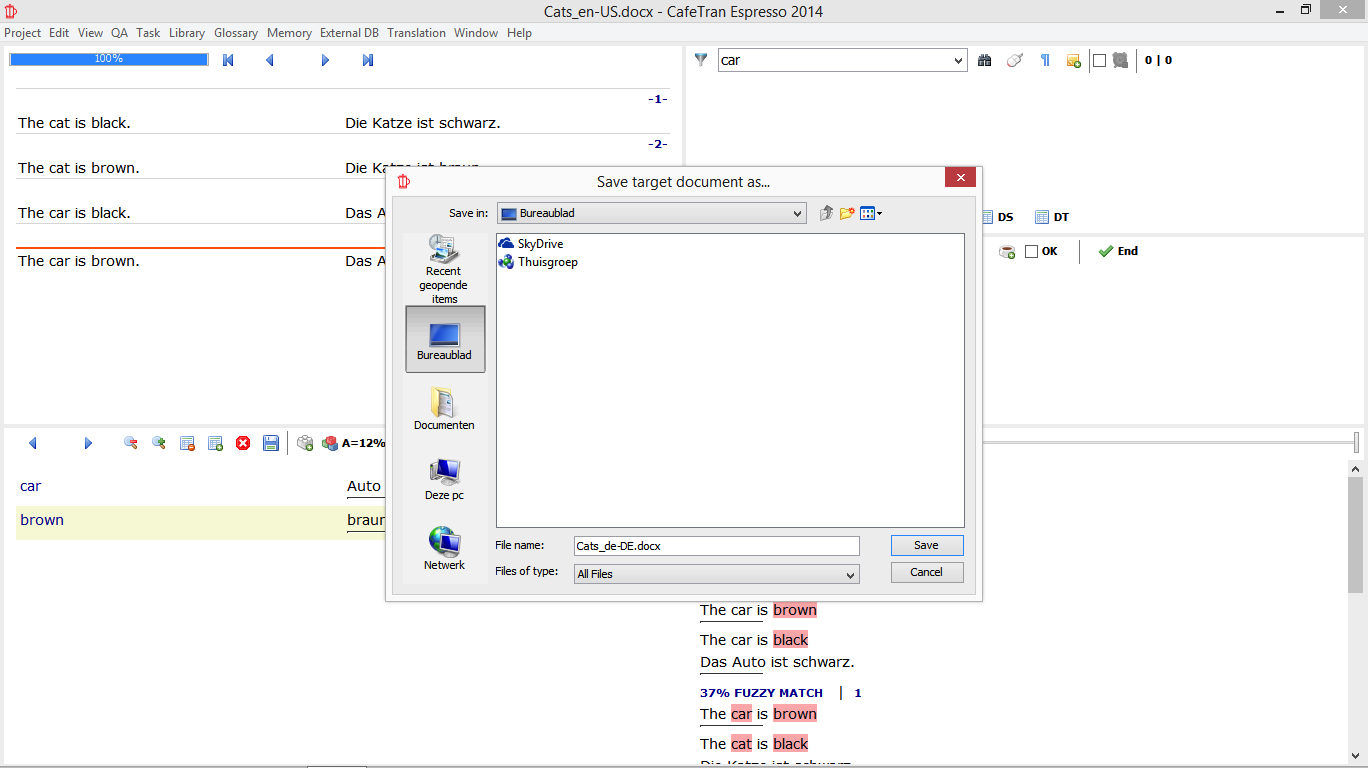
- Choose a folder for your target document.
- Check the target document.

Videos from the developer himself
These older videos are very informative and nice to listen too (thanks Adrian!). The GUI elements may have changed, but the principles of the workflow are still the same:
Create CafeTran Translation Project
http://www.youtube.com/watch?v=AivOvPP5LGs
